Handwritten Note-Taking on Android With a Stylus
Learn which stylus specs, hardware standards, and apps actually matter for your note-taking needs.
Android's stylus market runs on incompatible standards, and picking the wrong one for your app of choice is how people end up writing on a pricey tablet that feels worse than a legal pad. This piece walks through the hardware specs that actually matter, breaks down the apps worth knowing about, and matches both to the three use cases that drive most buying decisions: PDF markup, lecture notes, and freeform sketching.
The four hardware specs that determine whether stylus writing feels good
Pressure sensitivity sounds like a spec-sheet checkbox until you try writing without it. An app or stylus that ignores pressure draws the same line weight no matter how hard the tip presses down, so every stroke comes out looking like it was made with a crayon held by someone in mittens. Tilt support matters for a narrower group: it changes stroke width and shading angle based on the angle of the pen, so digital sketching behaves like charcoal instead of like a fixed-width marker taped to a stick.
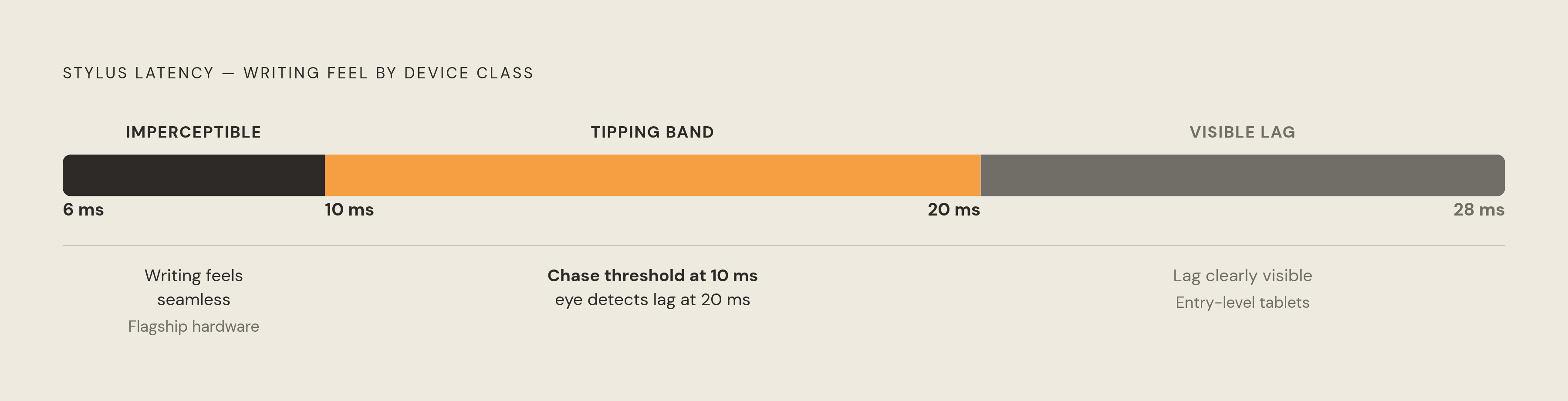
Latency is the one people feel before they can name it. It's the gap between the tip touching glass and ink showing up on screen, and testing across device tiers turns up numbers from 6 milliseconds on flagship hardware to 28 milliseconds on entry-level tablets. That range sounds academic until you're mid-sentence and the ink is visibly trailing behind the pen tip, like the screen is thinking it over before committing. Under roughly 10ms, writing stops feeling like a chase. Above 20ms or so, the lag becomes something the eye catches even if the writer can't quite explain why the page feels sluggish.
Palm rejection solves a problem nobody thinks about until it ruins a page: the side of the hand rests on the screen constantly during normal writing, and any app that doesn't filter that contact turns a clean note into a scatter of stray marks and accidental scrolls. Rejection quality isn't a fixed property of the app, either. It changes based on the exact stylus-and-tablet pairing, so an app with excellent rejection on a Galaxy Tab's S Pen can behave erratically with a third-party stylus on different hardware.
Then there's the stylus standard itself, and this is where the fragmentation really bites. Samsung's S Pen runs on Wacom's digital pen technology and, on supported Galaxy Tabs, pairs over a short-range wireless connection and charges when docked. USI, short for Universal Stylus Initiative, is the open standard Lenovo and other manufacturers use, offering real pressure sensitivity but without the deep software integration Samsung builds for its own pen. Below both sits the capacitive rubber-tip stylus bundled with budget tablets, which offers no pressure sensitivity at all and isn't built for anything beyond signing a form or poking at icons. Samsung's Tab S9 FE and Tab S10 FE ship with S Pens that skip wireless pairing hardware entirely, so Air Actions, wireless pairing, charging, and the battery indicator all disappear on those specific models. Same brand, same pen shape, noticeably different feature set.
The Samsung Galaxy ecosystem: what the S Pen delivers
Samsung's current flagship line is the Galaxy Tab S11 series, covering the standard S11 and the S11 Ultra, which succeeded the S10 generation. But the interesting entry point for stylus shoppers on a budget sits lower down: the Galaxy Tab S10 Lite at $399, a 10.9-inch tablet that ships with a pressure-sensitive S Pen included in the box, not sold separately as an accessory.
That S Pen isn't a stripped-down afterthought. It handles handwriting recognition, automated note cleanup, on-screen math equation solving, and illustration work, putting real capability at a price point where competitors often bundle a glorified capacitive stick. Samsung's Air Command suite adds a screen-off memo function, pressure sensitivity throughout, and (on the models with that wireless pairing hardware) Air Actions, the gesture controls that let the pen double as a remote for things like camera shutter and slide navigation. As noted above, the FE-series tablets don't get those last features. "S Pen" is not one uniform experience across Samsung's whole lineup.
What makes the S Pen hard for outside apps to compete with isn't the pen itself so much as Samsung Notes. Running natively on Samsung's own hardware and software stack, Samsung Notes achieves close to zero latency, a benchmark that comes less from clever engineering than from owning both ends of the pipe, since the OS, the digitizer, and the note-taking software are all built by the same company, tuned to each other in a way a third-party app installed after the fact simply cannot replicate.
The five apps Android stylus users choose between, and what each does best
No app wins on every axis, so this is a five-way field rather than a clear winner. The right pick depends on what someone is actually trying to accomplish with the pen in hand.
Samsung Notes is the default for a reason: it's pre-installed on every Galaxy phone and tablet, costs nothing, and delivers the best native S Pen experience simply because it's the same company on both sides of the software-hardware line. Palm rejection is excellent, handwriting-to-text conversion is built in, and PDF annotation works without hunting through a menu. Samsung's Galaxy AI layer adds Note Assist for auto-formatting and summarizing and translating, plus Writing Assist, Drawing Assist, and Transcript Assist on supported devices. The tradeoff is baked into the name: step outside the Galaxy ecosystem and the experience degrades, because none of that tight integration exists on someone else's hardware.
Nebo takes a different bet: instead of trying to be everything, it focuses almost entirely on turning handwriting into clean, editable, searchable text, and it does that conversion better than the rest of the field. Palm rejection holds up well, PDF annotation covers the basics without much depth, and the core conversion engine remains the centerpiece of what Nebo offers. Pricing runs $1.99 a month or $7.99 a year, with a one-time purchase option also available. Students and professionals whose real goal is "get this handwriting into a document I can search and edit" gravitate here first.
Squid takes the opposite specialization: PDF markup. Its handwriting is vector-based rather than a raster image, meaning strokes stay crisp no matter how far the page is zoomed, and it supports zoom that keeps strokes crisp no matter how far the page is scaled. Palm rejection performs well, though the free tier skips handwriting-to-text conversion, and there's no AI layer. Squid charges for its premium tier on a monthly or yearly basis, and it's limited to Android and ChromeOS, which actually works in its favor for anyone who's already committed to that ecosystem and doesn't need cross-platform syncing. For markup-heavy work, like slides, contracts, or research papers covered in margin notes, Squid leads the group.
Three additional apps worth knowing for specific situations
GoodNotes 6 didn't start on Android, and that history still shows: it built its reputation on iOS and iPadOS before expanding to macOS, Windows, Android, and the web, and the cross-platform reach is now one of its biggest selling points. Pen strokes feel close to real ink, the notebook templates are extensive, OCR accuracy holds up, and shape recognition and an infinite canvas round out the drawing tools. Version 6 improved cloud syncing meaningfully over earlier releases. Pricing includes a free tier alongside paid options. The whole thing is built around discrete pages rather than a continuous scroll, which matters if a workflow depends on one long unbroken canvas.
Noteshelf followed a similar path in reverse order of familiarity, building its base on iPad before arriving on Android and Windows. Its ink engine responds quickly enough that the "writing on glass" sensation mostly fades into the background, and palm rejection holds up across different Android manufacturers' touchscreen implementations, which isn't a given when every tablet maker builds its digitizer hardware slightly differently. Recent updates added AI content generation from text prompts, summarization, and translation, layered on top of a handwriting-to-text feature that predates the AI additions by some time. For Android-first users chasing a paper-like feel without a recurring bill, Noteshelf is worth a close look.
Google Keep barely qualifies as a note-taking app by comparison, and that's the point. It's fast, free, and syncs automatically across Android, iOS, and the web through a Google account. It supports handwritten input with either stylus or finger, and it supports stylus input. Notes sync automatically and the app integrates with the broader Google ecosystem. What it doesn't do is organize: organization is minimal, so anything beyond a quick scrawled thought outgrows Keep fast. That's exactly the use case it's built for, capturing a fleeting idea before the friction of opening a heavier app causes it to evaporate.
Why handwriting activates more of the brain than typing for note-taking on a stylus
Handwriting recruits a wider spread of brain activity than typing does; motor regions, visual processing, and sensory input areas all light up together rather than one narrow channel doing the work. A 2024 EEG study using graph-theoretic analysis found 32 statistically significant differences across 16 distinct neural connections during handwriting, including theta-alpha coherence across parietal and central cortical hubs that simply didn't appear during typing.
That finding comes with an asterisk that should be taken seriously. That finding has been questioned in subsequent discussion, and the study's design has not gone unchallenged. So the neural difference between handwriting and typing looks real. How large that difference is under ordinary, real-world note-taking conditions is still an open question, and treating the 2024 finding as the final word would be overselling it.
What does hold up across multiple studies is the memory angle: handwriting tends to produce stronger retention than typing, and the likely mechanism is friction. Handwriting is slower and more effortful, which forces a level of engagement typing doesn't demand. Every letter requires its own distinct stroke sequence, building a motor-to-symbol link that a uniform key press just doesn't create. Something about physically drawing a word seems to lodge it more firmly than tapping the same word out on a flat, identical keyboard surface.
Matching your setup to your actual use case
For lecture and meeting note-takers, the priorities are low latency for keeping pace with a fast talker, dependable palm rejection, and handwriting-to-text conversion so the notes are searchable weeks later. A Samsung Galaxy Tab paired with an S Pen running Samsung Notes covers in-session capture well. From there, Nebo makes sense if converting messy handwriting into clean editable text is the single output that matters most. Anyone whose broader workflow already lives inside Microsoft 365, and who needs real-time collaboration with colleagues on other devices, is better served anchoring around OneNote instead.
For PDF annotators, the checklist looks different: true PDF rendering rather than a flattened image import, precise markup tools, and export that doesn't mangle the file. Squid is a strong choice for this category. Samsung Notes handles PDF markup adequately for Galaxy owners who'd rather not juggle a second app. Confirm the app imports PDFs with the original text layer intact before committing to either, because a flat image import quietly loses both zoom quality and text searchability, and most people don't notice until they need to search a document and can't.
Sketchers and visual thinkers should prioritize pressure sensitivity, tilt recognition, a range of brush types, and an infinite canvas over anything else on this list. GoodNotes 6 suits anyone who splits time between Android and Apple hardware and wants one consistent set of notebooks across both. Noteshelf suits Android-first users who'd rather pay once than subscribe, without giving up the paper-like feel. Either way, confirm stylus compatibility before buying anything: an app that feels excellent with a Galaxy Tab's S Pen can feel noticeably flatter with a USI pen running on a Lenovo tablet, even if both are technically "supported."
Non-Samsung Android tablet owners lose access to Samsung Notes outright, but the rest of the field, Nebo, Squid, GoodNotes, and Noteshelf, all run across Android hardware generally. Confirm ahead of purchase whether a given tablet's stylus standard, USI or a manufacturer's own proprietary pen, is actually supported by the app in question. At the lower end of the market, hardware quality affects results more than app choice: latency on non-flagship tablets can climb to 20 milliseconds or beyond, at which point no amount of software polish fully compensates for what the screen itself can't keep up with.